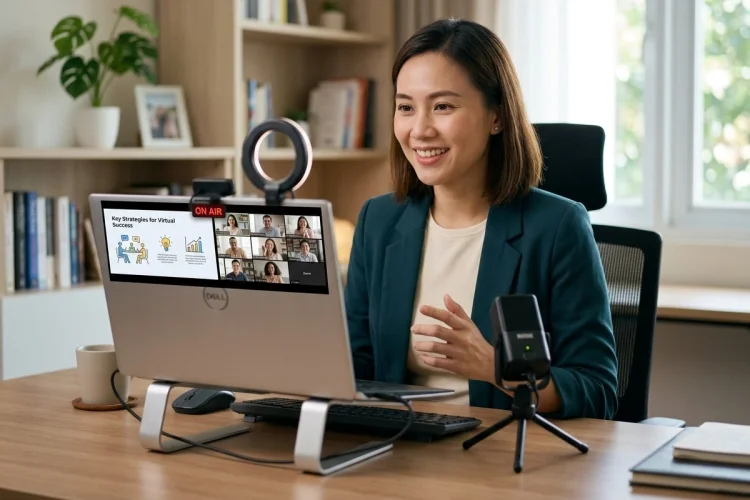
Giving a presentation from your laptop sounds easier than standing in front of a crowded room. You don’t have to walk onto a stage, hundreds of people aren’t staring directly at you, and your notes can sit conveniently beside the screen.
Then reality arrives.
Your microphone stops working, someone says your slides aren’t visible, notifications appear while you’re sharing your screen, and half the audience seems distracted by something outside your presentation.
Learning how to deliver an effective online presentation requires more than simply transferring an in-person speech to Zoom, Microsoft Teams, or Google Meet.
Virtual audiences experience your presentation through a small screen, which changes how you need to use your voice, body language, slides, and audience interaction.
Stanford Graduate School of Business recommends keeping virtual presentations focused, simplifying slides, looking toward the camera, preparing your technology, and deliberately creating opportunities for interaction.
The technology matters, but good communication matters even more. Here is how to make both work together.
Prepare Your Technology Before the Presentation
A brilliant presentation can quickly lose momentum when the first five minutes are spent asking:
“Can everyone hear me?”
Technical preparation should happen before the audience arrives.
Test your microphone, camera, internet connection, presentation software, videos, screen sharing, and any interactive features you plan to use.
Microsoft recommends rehearsing online presentations with the complete technical setup, including transitions, media playback, and timing.
Audio deserves special attention.
People may tolerate average video quality, but following a presentation becomes difficult when the speaker sounds distorted, extremely quiet, or surrounded by background noise.
Microsoft specifically notes that audio can be more important than video for participants who are primarily listening.
Choose a quiet space and use a reliable microphone or headset when possible.
Also close unnecessary apps, silence notifications, and remove private information from your desktop before sharing your screen.
The goal is simple: technology should disappear into the background once you begin speaking.
Set Up Your Camera Like a Conversation
Your camera determines how the audience experiences you.
Place it roughly around eye level rather than far below your face. Position yourself close enough that viewers can comfortably see your expressions while leaving enough space for natural gestures.
Lighting matters too.
A bright window directly behind you may turn your face into a silhouette. Instead, try positioning a light source in front of you or slightly to one side.
Then consider eye contact.
In an in-person presentation, you look directly at the people in the room. Online, looking at someone’s image on your screen may appear to them as though you’re looking downward.
For stronger virtual eye contact, look into the camera during important statements.
Toastmasters recommends adapting body language to the smaller virtual frame and keeping gestures visible rather than allowing your hands to repeatedly disappear outside the camera view.
You don’t need to stare into the lens continuously. Alternate naturally between the camera, your notes, and the audience on screen.
Keep Online Slides Simple
Virtual slides may be viewed on a large monitor, a laptop, a tablet, or even a smartphone.
That means complicated slides become even harder to understand online.
Avoid filling the screen with long paragraphs, oversized tables, and several charts competing for attention. Instead, give each slide a clear purpose.
For example, rather than using the title:
Quarterly Results
Try:
Online Sales Grew 24% in Q2
The second version immediately tells viewers what they should notice.
Microsoft recommends dividing content into digestible sections and using limited text, strong contrast, and readable typography for virtual presentations.
The University of Michigan similarly advises designing for the smallest screen your audience may use and creating a clear hierarchy around the main message.
Remember that you’re still the presenter.
Your slides should provide visual support while your voice provides context, explanation, and meaning.
Start Strong and Explain What to Expect
Online audiences have plenty of potential distractions.
Email is one click away. Phones are sitting nearby. Other browser tabs are open.
Your opening therefore needs to earn attention quickly.
Instead of spending several minutes introducing yourself and reading an agenda, begin with a problem, question, story, or surprising observation.
For example:
“Last year, one customer problem cost our company more than every advertising campaign we ran combined.”
Then explain why that matters.
You should also briefly tell participants how the session will work.
Will questions happen throughout the presentation or only at the end? Will you use polls? Should people participate through chat? Will there be a downloadable resource afterward?
Giving these expectations early makes interaction easier later.
Stanford’s virtual-presentation guidance emphasizes concise content and recommends incorporating interactive elements when presentations become longer.
The audience should understand both what they will learn and how they will participate.
Create Interaction Instead of Delivering a Monologue
One of the biggest differences between online and in-person presentations is how easily virtual participants can disappear.
Someone can remain logged into your meeting while answering email, scrolling through a website, or making coffee.
Interaction helps bring people back.
You could ask:
“Which of these challenges happens most often in your team?”
Then invite participants to answer in chat.
Later, you might run a simple poll, ask for reactions, invite questions, or give people 30 seconds to think about how an idea applies to their work.
Zoom’s guidance recommends using interactive tools such as polls, chat, annotation, questions, and breakout activities to prevent virtual presentations from becoming passive experiences.
However, interaction should have a purpose.
Don’t run a poll merely because the software has a polling feature. Use it when the result helps introduce your next idea, reveals what the audience thinks, or gives participants an opportunity to apply what they have learned.
Good online engagement isn’t about adding more activities.
It’s about giving listeners a reason to remain mentally involved.
Use More Vocal Variety Online
Your voice becomes particularly important when presenting virtually.
In a physical room, people can see your full body, movement across the stage, and interaction with other people. Online, much of that visual information disappears.
Your voice has to carry more of the presentation.
Avoid delivering every sentence with exactly the same volume, pitch, and pace.
Slow down when explaining an important concept. Use slightly more energy when introducing a new section. Pause after asking a question. Emphasize words that communicate the key takeaway.
Toastmasters notes that vocal emphasis is especially useful online because even when participants look away from the screen, the speaker’s voice can help pull their attention back toward the presentation.
You don’t need to sound like a television presenter.
Just avoid speaking as though you’re reading a document aloud.
Conversational energy works well online.
Speak to the Camera, Not Your Slides
Screen sharing creates a common temptation: turning the entire presentation into slide narration.
Imagine the screen displays:
Customer satisfaction increased 18%.
Then the presenter says:
“Customer satisfaction increased 18%.”
The audience hasn’t learned anything beyond what it can already read.
Instead, add interpretation:
“What matters here is why satisfaction improved. Nearly all of the increase happened after we reduced average support response time.”
Now you’re adding value.
Try keeping your slides simple enough that you don’t need to read them.
When making an important point, return your attention to the camera. This gives the audience the feeling that you’re speaking directly to them rather than talking to your PowerPoint deck.
Modern presentation tools can also help. For example, PowerPoint Live in Teams allows presenters to view notes, participants, reactions, and chat alongside the presentation, making it easier to remain connected to the audience.
Technology should help you communicate-not encourage you to hide behind the slides.
Manage Your Pace and Break Content Into Sections
Long stretches of uninterrupted explanation can feel especially exhausting online.
Break your presentation into smaller sections.
For example:
You might spend the first few minutes defining the problem.
Then show one example.
Next, ask a question.
After that, introduce the solution.
This creates rhythm.
Duarte’s research and virtual-presentation guidance emphasizes making online content easy to process and incorporating interaction when sessions become longer.
Transitions can also help listeners recognize movement between ideas:
“Now that we’ve looked at why customers leave, let’s talk about what actually brings them back.”
Short verbal signposts are particularly useful online because someone who briefly loses focus can quickly understand where the presentation has reached.
Prepare for Something to Go Wrong
Online presentation technology is useful, but it isn’t perfect.
Your slides may fail to load.
A video might freeze.
Your internet connection could become unstable.
Instead of assuming everything will work, decide beforehand what you’ll do when it doesn’t.
Keep a backup copy of important files. Have key statistics available in your notes. Know enough about your content that you can continue speaking even if the presentation briefly disappears.
If you’re delivering an important webinar, having another person handle technical problems, chat, or audience questions can also help. Stanford recommends using an assistant where possible so the presenter can remain focused on communication.
And if something fails during the presentation?
Stay calm.
Say what happened, explain what you’re doing, and continue.
Your response to a technical problem often affects the audience more than the problem itself.
Rehearse the Online Version, Not Just the Speech
Practicing your script isn’t enough.
You need to practice the virtual experience.
Start the meeting platform.
Turn on your camera.
Share the presentation.
Move through the slides.
Play the video.
Ask your imaginary audience the poll question.
Stop sharing.
Begin again.
Stanford recommends rehearsing with the actual technology and recording practice sessions so presenters can evaluate what works and what needs improvement. Microsoft similarly advises rehearsing with the full technical setup before an online event.
Watch a short recording of yourself afterward.
Is your face properly framed? Is the audio clear? Are you looking at the camera? Are your slides readable? Are you talking too quickly?
Fix the biggest problem first.
You don’t need a perfect studio.
You need a setup that allows your message to come through clearly.
Learning how to deliver an effective online presentation requires a combination of strong communication and reliable technical preparation.
Test your equipment, prioritize clear audio, position the camera naturally, simplify your slides, and start with something worth hearing.
Throughout the presentation, use vocal variety, purposeful interaction, and clear transitions to keep remote participants involved. Most importantly, know your material well enough that a technical problem doesn’t destroy your confidence.
Before your next virtual presentation, do one complete rehearsal using exactly the same camera, microphone, slides, software, and screen-sharing setup you plan to use live.
Record it, watch the first five minutes, and identify one improvement.
A better online presentation usually begins long before you click Join Meeting.